Mozilla just release
Firefox 3 Beta 1. Review said it is much faster and consume less memory. It definitely worth a try but for the obvious reason you have to keep your Firefox 2. Here is the steps show you how to install Firefox 3 and make it co-exists with Firefox 2.
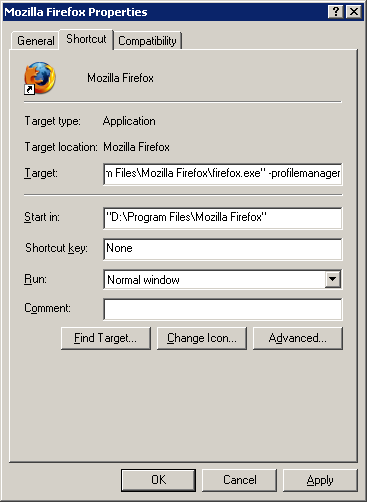
1. Right click the shortcut of the Firefox 2, click "Properties". Add "
-profilemanager" at the end of the shortcut path. Click OK. Then run this shortcut to launch Firefox Profile Manager.
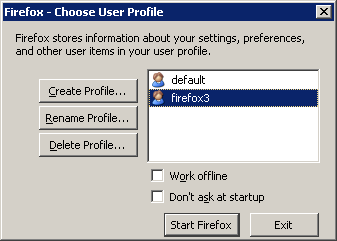
2. Create a new profile, name it "
firefox3". And uncheck the "
Don't ask at startup"
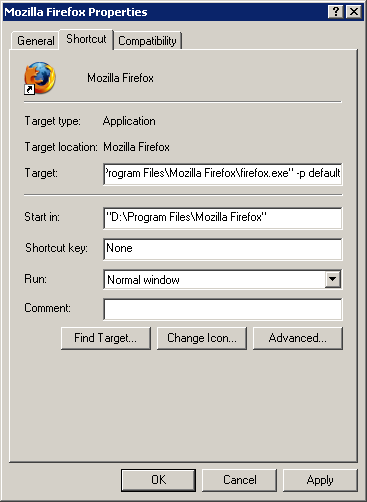
3. Go to Properties of the Firefox 2 shortcut again, remove the "-profilemanager" and add "
-p default" at the end of the path. This forces Firefox 2 to open the original profile.
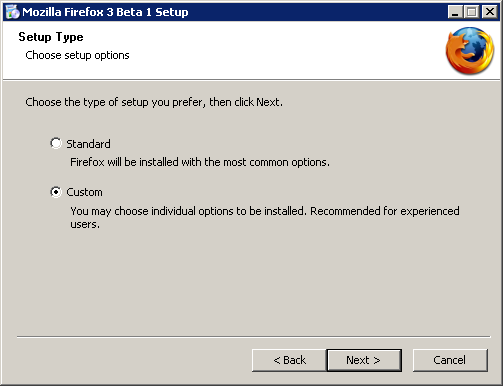
4. Start install Firefox 3. Choose "
Custom" when you are asked.
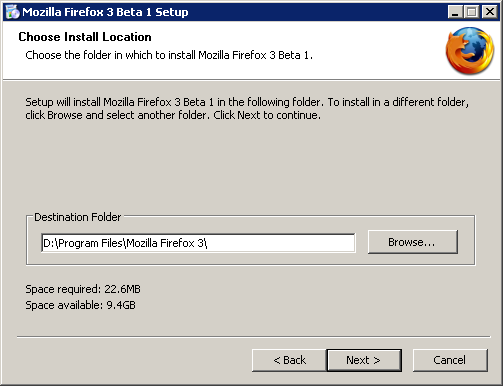
5. The default Destination Folder is "Mozilla Firefox 3 Beta 1", which is stupid when you later update to Beta 2, Beta 3 or even 3.0.1. So change it to
Mozilla Firefox 3
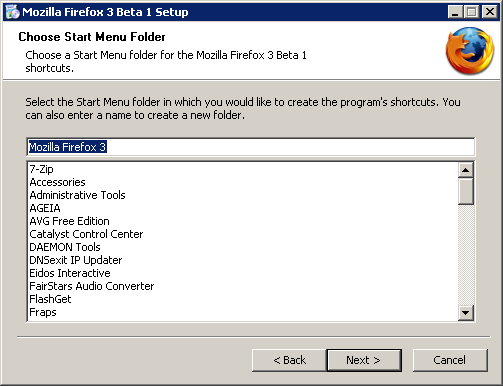
6. Same in Start Menu Folder name.
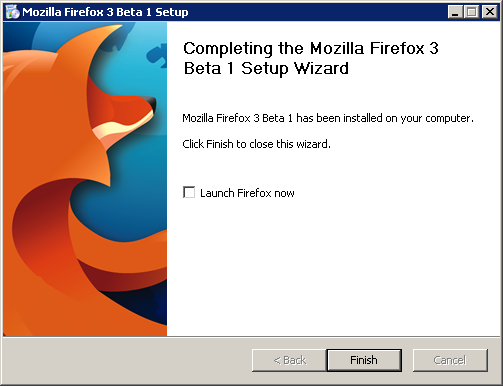
7. When installation completed, uncheck the "
Launch Firefox now". You still have something to do before you can run it.
8. Go to the Properties of the Firefox 3 shortcut. Append "
-no-remote -p firefox3" to the Target. The "-no-remote" will let Firefox run a separate instance. The "-p firefox3" will force your Firefox 3 to run the newly clean profile.
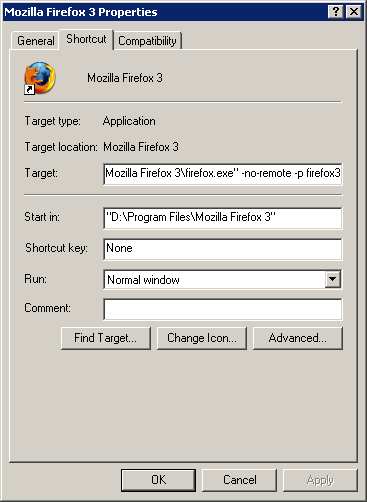
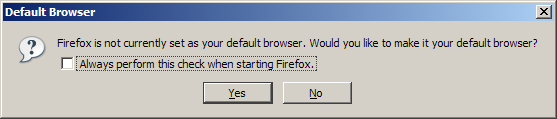
9. Run the Firefox 3, and you will be prompted that your Firefox is not the default browser.
DON'T click Yes. Firefox 3 is not stable and you won't like to use it as your default browser. Simple uncheck the "Always perform this check when starting Firefox" and click No.
10. Now you can run Firefox 2 and Firefox 3 at the same time. Enjoy it.
 Google Chrome 1.0 supports Greasemonkey. You can use Google Reader Unread Count and Better Mobile Twitter in Chrome now.